
Introduction
You’ve probably tapped your phone to pay for something at a supermarket, or watched someone hold their phone near a door and walk straight through without pressing a button. That’s NFC at work — a technology that’s been quietly becoming part of everyday life in Qatar and around the world, without most people fully understanding what it actually is or how to use it properly.
If you’re a professional thinking about switching to an NFC business card, a business owner considering NFC review stands for your shop, or simply someone who wants to understand what the “NFC” setting in your phone actually does — this guide covers everything. What NFC is, how it works in your phone, where the antenna is located on different devices, how to enable it on Android and iPhone, and exactly how to use it with etap’s NFC cards and smart products.
What Is NFC in Mobile Phones?
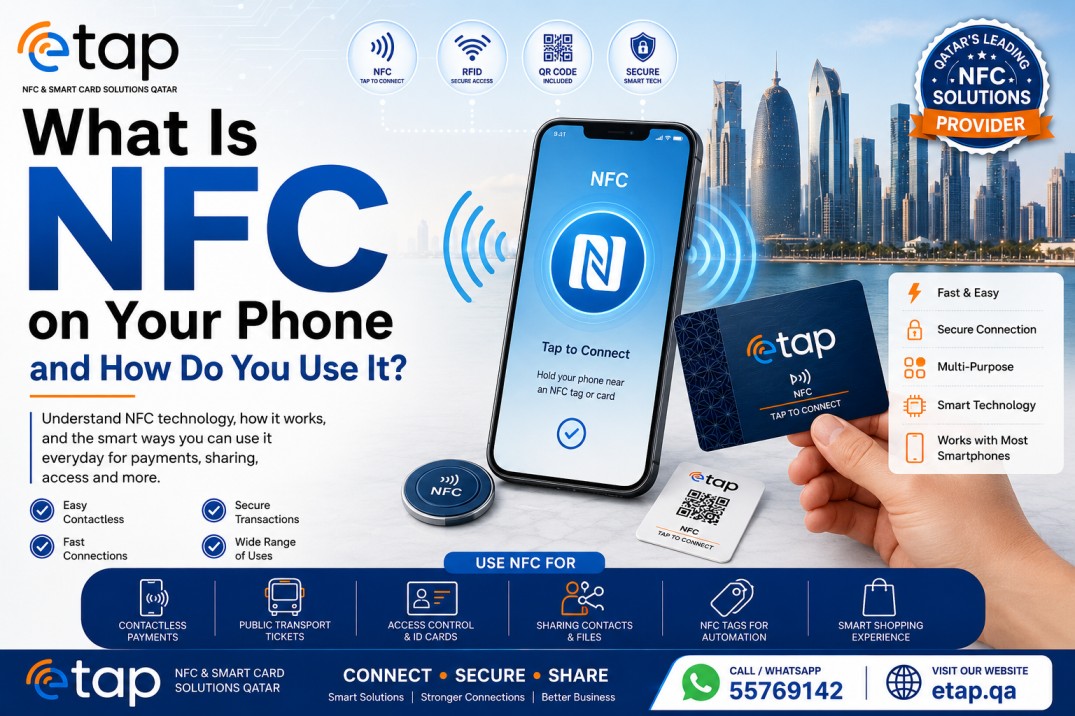
NFC stands for Near Field Communication. It is a short-range wireless technology that allows two devices — or a device and a smart tag — to exchange data when brought within approximately 4 centimeters of each other.
Unlike Bluetooth or Wi-Fi, NFC requires no pairing, no passwords, no searching for devices, and no internet connection. The communication happens instantly the moment the two NFC-capable objects are close enough. There is no setup on the receiving side — the person tapping an etap NFC business card with their phone doesn’t need an app, an account, or any prior configuration. They tap, and it works.
NFC in smartphones operates at 13.56 MHz — the same frequency as modern contactless bank cards and smart access cards — and the chip draws power from the electromagnetic field produced by the reader at the moment of interaction. For passive NFC tags (like the chip in an etap card), there is no battery required at all.
The Three Ways NFC Works in Your Phone
Reader/Writer Mode: Your phone reads a passive NFC tag and opens the stored data — a URL, contact details, or any programmed instruction. This is what happens when you tap an etap NFC business card or Google Review stand. The phone reads the tag and opens your digital profile instantly.
Card Emulation Mode: Your phone acts like a contactless card. This is how Apple Pay, Google Pay, and tap-to-pay bank card apps work — the phone presents itself as a payment credential to the terminal.
Peer-to-Peer Mode: Two NFC-enabled phones exchange data directly by tapping together. Used for file sharing and device pairing handoffs.
For etap card users, Reader/Writer Mode is the relevant one: your card is the tag, your client’s or contact’s phone is the reader.
Which Phones Support NFC?
NFC is now standard in virtually every mid-range to premium smartphone. Here’s the current landscape:
iPhones
Every iPhone from the iPhone 7 onwards includes NFC hardware. However, there is an important distinction by model:
- iPhone 7 and 8: NFC is available but only for Apple Pay — it cannot read NFC tags natively without a dedicated app.
- iPhone XS, XR, and later (iOS 13+): Background NFC tag reading is enabled — the phone automatically reads NFC tags when the screen is on and unlocked, with no app required.
- iPhone 12 and later: Even broader NFC compatibility, including reading NFC tags when the screen is locked (for certain tag types).
For etap NFC card use, any iPhone XS or later running iOS 13+ is fully compatible with no additional setup. When someone taps your etap card with an XS or newer iPhone, the Google review link, digital profile, or any programmed URL opens automatically.
Android Phones
NFC is included in virtually all modern Android devices across Samsung, Google Pixel, Huawei, OnePlus, Xiaomi, OPPO, and other brands common in Qatar. Key points:
- Samsung Galaxy (S series, A series mid-range and above): NFC included and enabled by default on most models.
- Google Pixel (all generations): NFC included as standard, enabled by default.
- OnePlus (models 3 and later): NFC included on most flagship and mid-range models.
- Huawei: NFC included on most flagship and upper mid-range models.
One important difference from iPhone: NFC is sometimes turned OFF by default on Android devices. If an Android user taps your etap card and nothing happens, their NFC may simply need to be switched on in settings — a 5-second fix.
Where Is the NFC Antenna on Your Phone? (The Sweet Spot)
This is the question that most NFC guides skip, and it’s genuinely useful to know. The NFC antenna is not in the same location on every phone, and knowing the “sweet spot” makes card tapping faster and more reliable — especially for customers who are new to NFC.
The antenna is always on the back of the phone, embedded inside the rear cover. Its position varies by brand and model:
iPhone NFC Sweet Spot
On iPhones, the NFC antenna is positioned near the top of the phone — roughly where the camera module is located on newer models. When tapping an etap card to an iPhone, align the card with the top third of the phone’s back for the most reliable read. Some users tap from the front with the card near the top of the screen — this also works on newer iPhone models.
Samsung Galaxy NFC Sweet Spot
On Samsung Galaxy phones, the NFC antenna is typically located in the center of the back, slightly toward the upper half. Tap the Etap card to the middle-back area of a Samsung device. On some older Samsung models, the antenna is near the top edge.
Google Pixel NFC Sweet Spot
On Google Pixel phones, the NFC antenna is generally located in the upper-center back, near the camera bar. Align the card with the back camera area for consistent reads.
Huawei NFC Sweet Spot
Huawei places the NFC antenna in the center of the back, often slightly below the camera cluster. Middle-back contact works reliably on most Huawei models.
OnePlus NFC Sweet Spot
OnePlus devices typically have the antenna in the upper-center back. Tapping the card to the back, camera area gives the best result.
Sony NFC Sweet Spot
Sony phones include a helpful feature that other brands don’t offer: many Sony models display a small “N” mark on the back of the phone, which physically marks the NFC antenna location. Tap directly to the N mark for an instant read.
General Rule
If you’re unsure of the exact position on a particular phone: start in the center-back, then try the upper-back if the first tap doesn’t register. Most reads happen within 1–2 seconds of the card being held flat against the phone’s back.
One important note: NFC does not scan continuously like a camera. The phone checks periodically for nearby NFC tags, which means there can occasionally be a one- or two-second delay before the read triggers. Hold the card flat and still against the phone — don’t move it around — and wait for the notification to appear.
How to Enable NFC on Your Phone
How to Enable NFC on Android
The exact menu path varies by Android brand and OS version, but the process is always straightforward:
Samsung Galaxy: Settings → Connections → NFC and Contactless Payments → toggle ON
Google Pixel and Stock Android: Settings → Connected Devices → Connection Preferences → NFC → toggle ON
Huawei: Settings → Wireless & Networks (or Device Connectivity) → NFC → toggle ON
Quick Settings shortcut (most Android phones): Swipe down from the top of the screen to open the Quick Settings panel. If NFC appears as a tile, tap it to toggle on/off without entering Settings.
Once NFC is on, it stays on unless you turn it off manually or enter a battery-saving mode that disables it. In Qatar, where both Apple Pay and Android Pay are used for contactless payments, most Android users in professional settings tend to keep NFC permanently enabled.
How to Enable NFC on iPhone
On iPhones that support background NFC tag reading (iPhone XS and later with iOS 13+), there is nothing to enable — the phone reads NFC tags automatically when unlocked. There is no NFC on/off toggle for tag reading on these models.
For Apple Pay (Card Emulation Mode) on iPhone: Settings → Wallet & Apple Pay → Add Card → follow setup instructions
For older iPhone models (XR or earlier) where background tag reading is limited: Settings → Control Center → Add “NFC Tag Reader” to Control Center. Then open Control Center and tap the NFC icon before tapping a tag.
For etap NFC business card users: if your contact has an iPhone XS or later, no setup is required on their end. They simply hold the phone near your card, and the profile opens automatically. This frictionless experience is one of the key reasons NFC business cards work so well in professional settings.
Everyday Uses of NFC on Your Phone
Understanding the full range of NFC applications helps clarify why this technology has become so central to modern professional and consumer life:
Contactless Payments: Apple Pay, Google Pay, Samsung Pay, and bank wallet apps all use NFC to complete transactions at card terminals. NFC payments are now accepted at millions of locations worldwide, including virtually every modern retail point of sale in Qatar. Transaction speed is significantly faster than chip-and-PIN, and security is higher — each transaction uses a one-time token so your actual card number is never transmitted.
NFC Business Card Sharing: The professional use case that etap specialises in. Tap an etap NFC card to a smartphone and the recipient’s browser opens instantly to your full digital profile — contact details, social links, website, portfolio, booking page, and more. No app needed on either side. No searching, no typing, no QR code alignment.
Google Review Cards: A specific NFC application etap produces for Qatar’s restaurants, salons, clinics, and retail businesses. The NFC chip in the card or acrylic stand is programmed with the business’s Google review URL. A customer taps their phone, the Google review page opens immediately, and they write their review in under 30 seconds. One of the highest-converting review collection tools available for local businesses.
Access Control: NFC-compatible smartphones can be provisioned as digital access credentials — replacing physical cards at door readers, gym turnstiles, and office entry systems. More modern access control systems in Qatar support mobile NFC credentials alongside traditional cards.
Transit and Ticketing: Qatar’s public transport network and many private transit systems use NFC-standard contactless cards. Newer systems globally support direct smartphone NFC for ticketing without a physical card.
Device Pairing: Tap two NFC-enabled devices together to initiate a Bluetooth pairing connection instantly. The NFC handles the handshake; Bluetooth takes over for the actual audio or data connection.
Smart Tags and Automation: NFC tags placed on objects, locations, or equipment can trigger automated actions on a phone — opening a specific app, logging a check-in, recording a maintenance action, or accessing a document. etap’s QR code acrylic products and NFC display stands use this principle for menus, review links, and smart marketing applications.
Troubleshooting: When NFC Doesn’t Work
Even when both the card and the phone have NFC, taps sometimes fail to register. Here are the most common causes and fixes:
Android NFC is turned off. The most frequent issue. Check Settings and confirm NFC is enabled. Many Android users turn it off to conserve battery and forget to turn it back on.
Battery saving mode is active. Many Android phones disable NFC when in power saver or battery saver mode to conserve energy. Exit battery saving mode and retry.
Phone case blocking the antenna. Very thick cases, cases with metal plates (used for magnetic phone holders), or cases with built-in wallets containing metal-stripe cards can interfere with NFC reads. Remove the case and retry.
Incorrect alignment. The card is being held at the wrong location on the phone. Move it to the center-back, then try the upper-back.
iPhone is too old for automatic tag reading. iPhone models older than XS require the NFC Tag Reader Control Center shortcut. Add it via Settings → Control Center.
Phone screen is locked (older iPhones). Background NFC tag reading on older models requires the screen to be unlocked and the phone awake. Unlock the phone first.
NFC tag damaged. If multiple phones fail to read the same card, the NFC chip may be damaged. etap cards use high-quality NTAG213/216 chips that are extremely durable, but physical damage (bending, puncture near the chip area) can affect performance. Contact etap for a replacement.
How to Use an etap NFC Card: Step by Step
For anyone receiving an etap NFC business card or encountering an etap NFC review stand or display, here is exactly how to use it:
iPhone XS or later (iOS 13+):
- Unlock your phone (screen must be on).
- Hold the top-back of your iPhone flat against the etap card.
- Wait 1–2 seconds.
- A notification appears at the top of the screen — tap it.
- Your browser opens to the digital profile, review page, or linked content.
Android (NFC enabled):
- Confirm NFC is enabled in Settings.
- Unlock your phone.
- Hold the center-back of your phone flat against the etap card.
- Wait 1–2 seconds.
- A notification or automatic browser redirect appears — tap to open.
If NFC doesn’t work (any phone): Every etap card and NFC stand also includes a QR code. Open your camera app, point it at the QR code, and tap the link that appears. The same content opens — the QR is a built-in fallback that ensures 100% compatibility regardless of NFC settings or phone model.
etap NFC Cards and Products: What You Can Tap in Qatar
etap produces the following NFC-enabled products for businesses and professionals across Qatar:
NFC Digital Business Cards (PVC — QAR 150): Full-colour custom-printed PVC cards with embedded NFC chip. Tap to share your complete digital profile — contact details, social links, website, portfolio, booking page.
NFC Digital Business Cards (Metal — QAR 200): Premium metal cards in gold, silver, black, white, or rose gold. Laser engraved with an NFC chip embedded. The most impressive card handout available in Qatar.
NFC Google Review Cards: Wallet-sized NFC cards programmed to open your Google review page instantly. Perfect for restaurants, salons, clinics, and retail businesses.
NFC Google Review Stands: Acrylic counter stands with embedded NFC chip and printed QR code. Permanent placement at checkout for automatic review collection.
NFC Loyalty Cards: Tap-based loyalty card programs for repeat customer rewards and engagement tracking.
NFC Acrylic Display Stands: Custom-branded acrylic stands with NFC chips for menus, social media links, promotional content, and any digital destination.
All etap NFC products are programmed with NTAG213 or NTAG216 chips — the current consumer NFC standard — and are compatible with every NFC-enabled smartphone without any app installation.
Frequently Asked Questions
Does the person receiving my NFC card need an app?
No. Modern iPhones (XS+) and all NFC-enabled Android phones read etap NFC cards natively — no app needed. The browser opens automatically.
Is NFC safe? Can my card be read without my permission?
NFC has a maximum range of approximately 4 centimeters. Accidental or unauthorized reads are not a practical concern — the card must be deliberately held against a phone for a read to occur. etap NFC cards are also write-protected after programming, so their content cannot be altered.
Does NFC drain my phone battery?
NFC uses minimal power when in standby mode. When actively completing a payment or reading a tag, it draws slightly more power, but the transaction completes in under a second. For most users, NFC has no perceptible impact on daily battery life.
Can I update what my etap NFC card links to?
Yes. Your digital profile (what the card links to) is editable any time through your etap dashboard. Change your phone number, add new social links, update your job title, or point the card to a new website. The physical card never needs replacing — only the digital profile changes.
What if my client has an older phone without NFC?
Every etap NFC card and stand includes a printed QR code as a fallback. One camera scan and the same profile opens. No one is left out.
Can I have multiple links on my NFC card?
Yes. Your etap digital profile can carry unlimited links — social profiles, website, WhatsApp, booking page, portfolio, payment link, Google Maps location, and more. The NFC chip points to the profile page, which displays all your links.
Does NFC work through a phone case?
In most cases, yes — standard plastic and silicone cases are thin enough that NFC reads through them without issue. Very thick cases, leather wallet cases with metal cards inside, or cases with magnetic mounting plates can sometimes interfere. If a tap isn’t working, remove the case and try again.
Conclusion
NFC is one of those technologies that once you understand how simple it actually is, you wonder why you waited to use it. No apps, no pairing, no typing — just tap. In Qatar, where smartphones are ubiquitous and professional standards are high, NFC is the natural infrastructure for the best business card, the smartest review collection tool, and the most frictionless customer interaction a business can offer.
etap designs, programs, and produces NFC cards and smart displays for businesses and professionals across Qatar. Every product works with every modern smartphone, takes seconds to use, and creates the kind of impression — or the kind of customer experience — that paper and manual processes simply cannot match.
Whether you’re a professional ready to upgrade your business card, a restaurant owner who wants more Google reviews, or a business building a loyalty card program, etap has the right NFC product and the team to set it up correctly.
Get in touch today.
📱 WhatsApp: +974 55769142 📧 [email protected] 📍 Al Naif Souq, Ain Khaled, Doha, Qatar 🌐 etap.qa